Overview of Irregular Birdcage
An Irregular Birdcage is a birdcage scaffold that can be any shape. Unlike a standard birdcage, which is usually square or rectangular, an irregular birdcage can fill an area with Birdcage scaffold.
Please note Irregular birdcage currently only supports Tube and fitting, and basic Birdcage calculations, Additional features will be released incrementally over the coming months:
- Support for system scaffolds
- Support for Add-ons – (sheeting, netting, hop ups etc)
- Support for openings – Bridges etc
-
Creating an Irregular Birdcage Scaffold
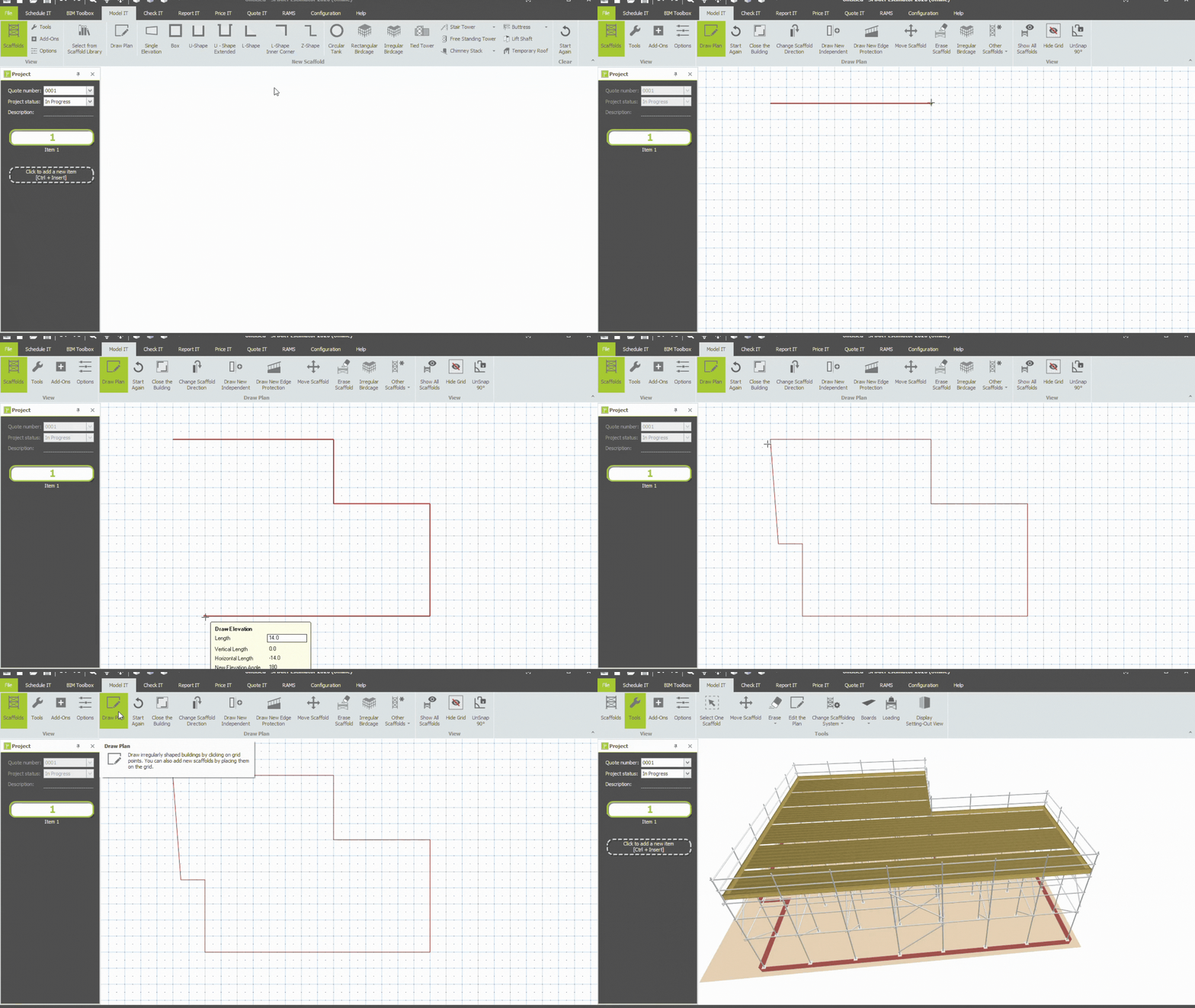
- In Model IT select the Scaffolds menu, then on the Scaffold toolbar – then you can select the Irregular birdcage
- Left click around corner points of the area where you want fill with birdcage scaffold.
- Keep adding points until the shape is complete.
- Click back on the first point to close the shape or click “close the building”
- Exit Draw plan by clicking the Draw plan button
Smart Scaffolder will automatically create a 2 lift birdcage to fill the area laid out in draw plan.
-
Adjusting the Birdcage’s dimensions
Height
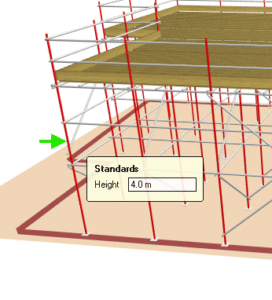
Changing the height of the Birdcage can be accomplished either by hovering your mouse over a standard and typing the required height in the dynamic pop up.
Bay Length and Width
You can set the maximum bay width and length by selecting a load class
Or using the setting out view -
Setting Out View
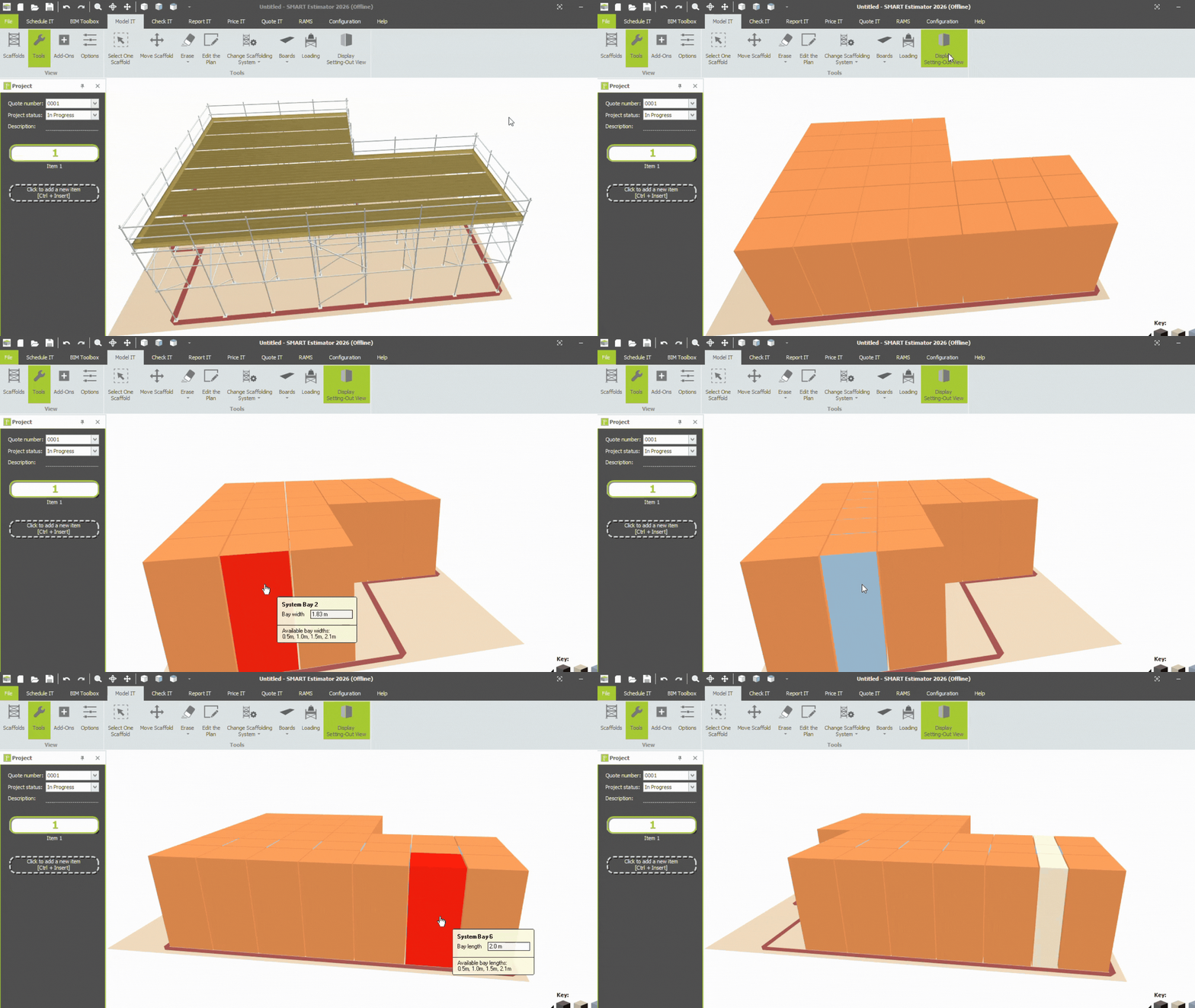
The setting-out View makes it easy to see and adjust the bay sizes used in an Irregular Birdcage.
To open the setting-out View in an item containing an irregular birdcage:
- Select the Tool bar in Model IT
- Click Display Setting-Out View on the Tools
The birdcage will be shown as a series of coloured bays. Each colour represents a different bay size, making it easy to see the layout. This follows the same principle as the setting-out View used for Independent System Scaffolds.
Colour Key
A colour key is displayed in the bottom-right corner of the screen.The colour key shows the bay size represented by each colour used in the scaffold. This makes it easy to identify bay lengths when checking or adjusting the layout.Changing Bay Sizes
Bay sizes can be adjusted directly from the setting-Out View.
To change a bay size:
- Hover over the bay you want to change.
- Type in the bay dimension.
- Press Enter to set the required bay size.
Bay sizes can be edited across both the length and width of the birdcage.
As bay sizes are changed, the scaffold updates automatically to reflect the new layout.
Using the setting-out View
The setting-out view provides a simple way to check that the birdcage has been set out correctly before construction.
The colour-coded layout can also be printed and used on site as a quick reference for scaffolders when setting out the birdcage.