-
Introduction
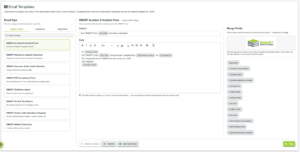
The Email Templates editor lets Admin users customise the subject and body of automated emails SMART Manager sends to contacts, instead of using the fixed CADS-supplied wording.It is accessed from Settings → Email Templates. Companies that have not customised a given template will continue to use the CADS default until they do.
The feature is only available in SMART Manager Advanced and is restricted to Admin users. Contact sales to upgrade.
The Email Templates editor covers:
-
How to edit an email template
- Go to Email Templates from Settings.
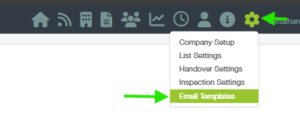
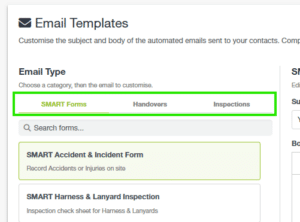
- In the left panel, select the email type using the SMART Forms, Handovers or Inspections tabs.
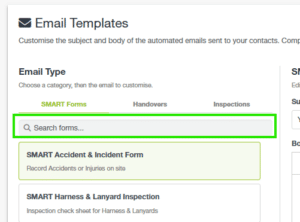
- Under the form type , you can use Search forms… to find and select the required form or report, for example SMART Accident & Incident Form.
- In the centre panel, the template name and status are shown at the top. Using CADS Default means the template has not yet been customised.
- Edit the Subject field. This can contain both plain text and merge fields, for example Your SMART Form [Form title] has been completed.

- Edit the Body using the rich-text editor. The toolbar supports bold, italic, underline, strikethrough, font size, text colour, alignment, lists, quote formatting, links and clear formatting.
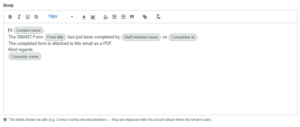
- Click Save at the bottom-right of the editor to apply your changes.
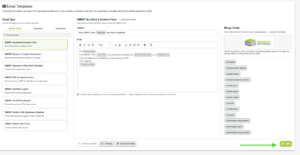
- Go to Email Templates from Settings.
-
How to use merge fields
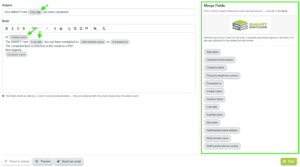
Merge fields are pill-shaped tokens that insert dynamic information instead of fixed text, allowing the same template to be used for different recipients.The available merge fields are shown in the right panel. Place the cursor in the Subject or Body where you want the information to appear, then click the required merge field to insert it.
Available merge fields include:
- Area name
- Company email address
- Company name
- Company telephone number
- Completed at
- Contact name
- Contract name
- Form title
- Scaffold name
- Site name
- Staff member email
- Staff member name
- Staff member phone
The SMART Scaffolder logo can also be inserted from the right panel as a resizable image placeholder.
-
How to add the company logo merge field

The SMART Scaffolder logo is inserted in the same way as the other merge fields.- Place the cursor in the Subject or Body where you want the logo to appear.
- In the right panel, click the logo thumbnail shown alongside the text merge fields.
- The logo is inserted as a resizable image placeholder.
- Drag the corner handles to resize the logo as required.
- Click Save to apply the change.
-
Previewing changes and resetting to default

The following options are available below the email editor:- Preview — shows how the email will render using the current draft.
- Send test email — sends the draft to yourself so you can check how it appears in a real inbox.
- Reset to default — restores the CADS standard wording. This option is disabled until the template has been customised.